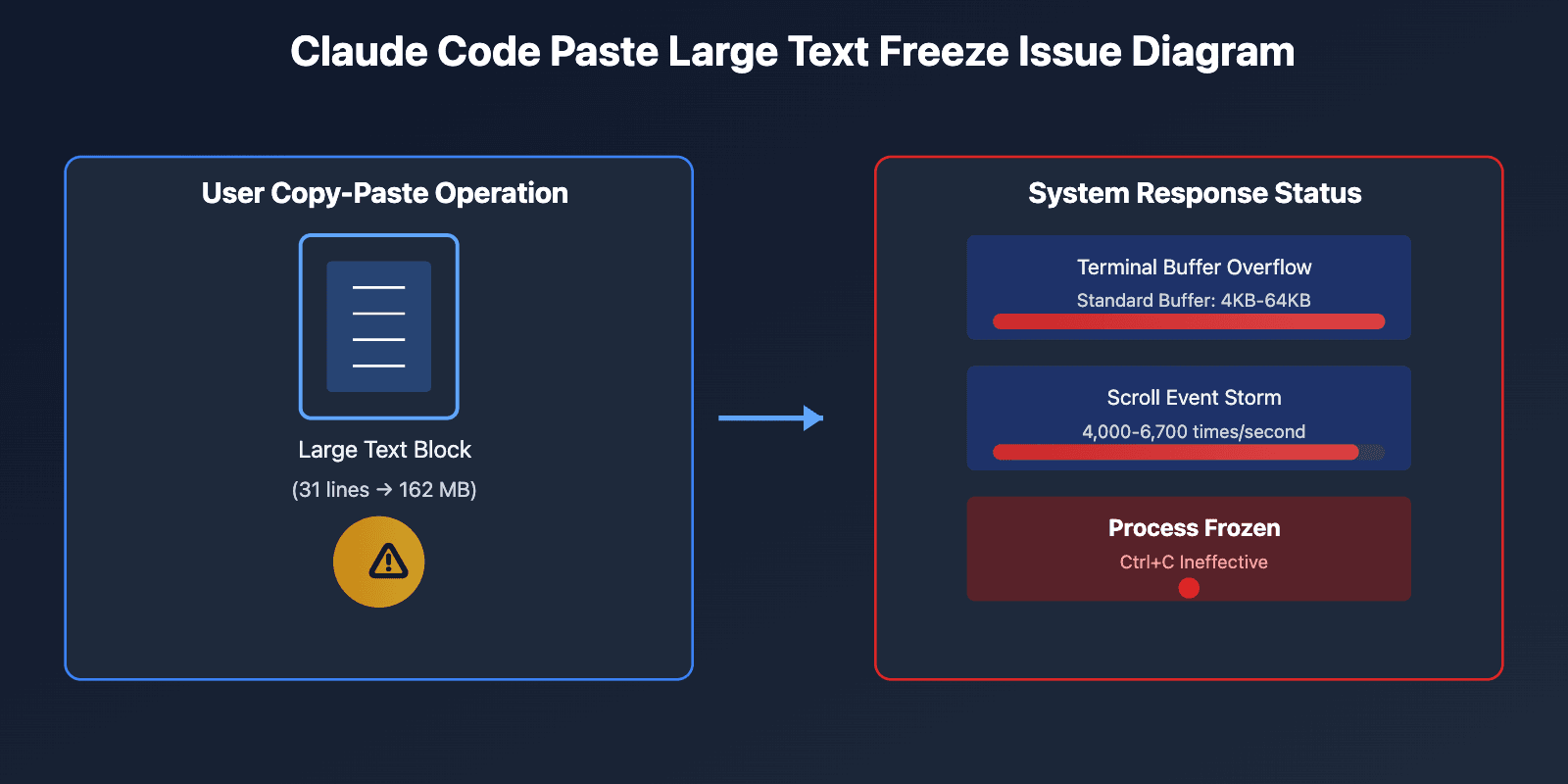
The Problem: Messy Terminal Copies
When you copy a multi-line command or prompt from the Claude Code terminal, you often get extra baggage: the leading ❯ prompt character and broken whitespace from line wrapping. This forces you to manually clean the text before you can paste it into a document, another chat, or use it as a new prompt. It's a small but frequent friction point in an otherwise smooth workflow.
The Solution: A Single-Purpose Web Tool
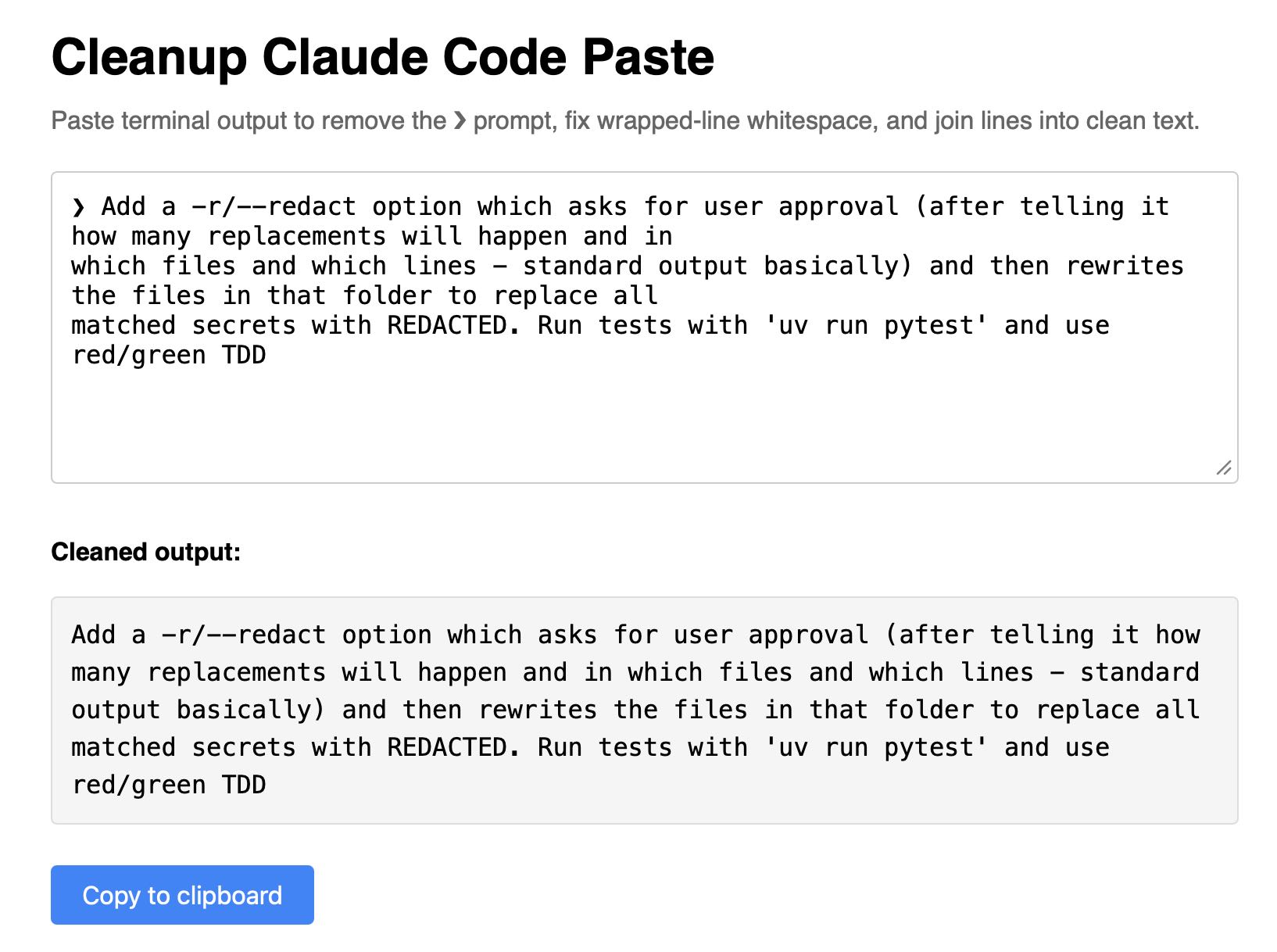
Simon Willison's new Cleanup Claude Code Paste tool solves this. It's a minimalist web page with one job:
- Remove the prompt character: Strips the leading
❯from pasted text. - Fix wrapped-line whitespace: Intelligently joins lines that were broken by the terminal's width.
- Output clean text: Provides a clean, copyable block of text.
How to use it:
- Copy any multi-line output from your Claude Code terminal session.
- Navigate to the tool's webpage.
- Paste (
Cmd+VorCtrl+V) directly into the page. The cleaning happens automatically. - Click the "Copy to clipboard" button to grab the cleaned version.
No installation, no configuration. It works entirely in your browser.
Why This Matters for Your Workflow
This tool addresses a specific pain point in the Claude Code agentic workflow. When Claude generates a complex shell command or a detailed prompt for a follow-up task, you might want to save it. A clean copy is essential for:
- Documentation: Adding commands to your project's
CLAUDE.mdorREADME. - Iteration: Using a cleaned prompt as a starting point for a more refined request.
- Sharing: Sending a precise instruction to a colleague without terminal artifacts.
While niche, it eliminates a manual step that interrupts your flow. This follows a trend of developers creating hyper-focused tools to smooth out edges in the AI-assisted development experience, a space where Claude Code has seen significant activity, appearing in 60 articles just this week.
A Native Workaround
For a keyboard-driven solution, you can often achieve a similar result by using your terminal's built-in copy functions. In many terminal emulators, you can:
- Select the text you want (excluding the
❯). - Use a "Copy Selection" shortcut (often
Cmd+Shift+Con macOS,Ctrl+Shift+Con Linux/Windows).
This method bypasses the line-wrapping issue if your selection is precise, but the web tool is more forgiving and handles bulk pastes effortlessly.