The GUI's Hidden Costs
When Anthropic released the Claude Code GUI preview, many developers expected a polished upgrade. Instead, they discovered workflow-breaking limitations:
Worktree Isolation: The GUI creates separate git worktrees in .workspaces folders, completely isolating Claude from your actual project directory. This breaks JetBrains IDE integration (though VSCode works) and creates orphaned branches that require manual cleanup.
Environment Amnesia: Fresh worktree checkouts mean no .env files, no local configuration, and none of your gitignored secrets. Your app won't run because database connections, API keys, and environment variables are missing.
Shell Limitations: The GUI runs only in bash, ignoring your zsh configuration, custom PATH settings, aliases, and tools like nvm. The workaround—telling Claude to wrap commands in zsh -c "..."—is unreliable and adds cognitive overhead.
What the GUI Actually Solves
Despite these issues, the GUI delivers real improvements:

No Conversation Compacting: The terminal version's "compacting conversation" warning—where Claude sacrifices context to stay within token limits—disappears in the GUI, maintaining full project context throughout long sessions.
Session Persistence: Close the window and return later to exactly where you left off, unlike terminal sessions that die with the terminal.
Opus Model Access: The GUI runs Claude Opus by default, which provides significantly better reasoning than Sonnet, reducing the back-and-forth iterations needed to complete tasks.
The Terminal + Opus Solution
Here's the key insight: You can run Opus in terminal Claude Code.
# Check your current model
claude code config get model

# Switch to Opus
claude code config set model claude-3-5-sonnet-20241022
# Or use the latest Opus model
claude code config set model claude-3-5-opus-20241022
This combination gives you:
- Opus-level reasoning with fewer iterations and better first-try accuracy
- Full IDE integration with your actual project directory
- Complete environment access including
.envfiles and gitignored configurations - Your shell setup with zsh, aliases, and custom PATH
- Clean git workflow on branches you control
Mitigating Terminal Limitations
You lose GUI advantages, but can minimize them:
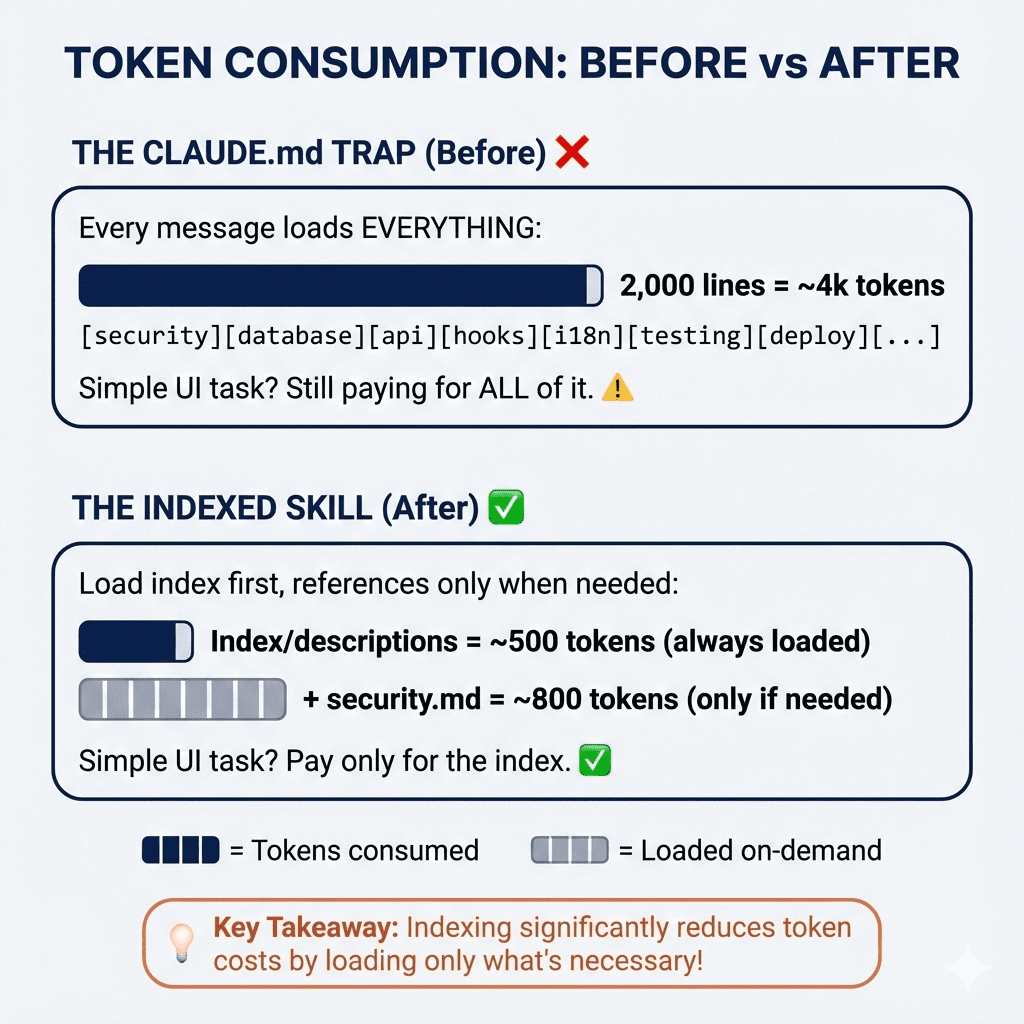
For session persistence: Maintain a detailed CLAUDE.md file that captures project context, current goals, and recent decisions. This serves as a persistent memory when sessions restart.
For conversation compacting: Structure your CLAUDE.md with clear sections and use the /compact command judiciously. Focus Claude on specific files rather than entire project trees.
Example CLAUDE.md structure:
# Project: API Service

## Current Goal
Refactor authentication middleware to support JWT tokens.

## Recent Changes
- Updated User model with JWT fields
- Created initial middleware skeleton in `/middleware/auth.js`

## Next Steps
1. Implement token validation logic
2. Add error handling for expired tokens
3. Update API routes to use new middleware

## Environment Notes
- Database connection string in `.env` as DB_URL
- JWT secret in `.env` as JWT_SECRET
- Run tests with `npm test`
When to Use Each Interface
Use terminal Claude Code with Opus when:
- You have an established IDE workflow (especially JetBrains)
- Your project relies on environment variables or local config
- You need full shell access with custom tools and aliases
- You want clean git branch management
Consider the GUI when:
- You're starting a new project from scratch
- You use VSCode as your primary editor
- Session persistence is critical for multi-day tasks
- You're willing to manually copy environment files
The Bottom Line
The GUI's advantages—session persistence and no compacting—don't outweigh its workflow disruptions for experienced developers. The real value comes from Opus's improved reasoning, which you can access in the terminal without sacrificing your development environment.
Update your terminal configuration to use Opus, refine your CLAUDE.md practices, and maintain your productive workflow while getting better AI assistance.