Key Takeaways
- Claude Code can now build and test iOS apps in Apple's Simulator.
- Use
claude codeto run Xcode builds, install apps, and execute UI tests directly from your terminal.
What Changed — iOS Simulator Support Is Live
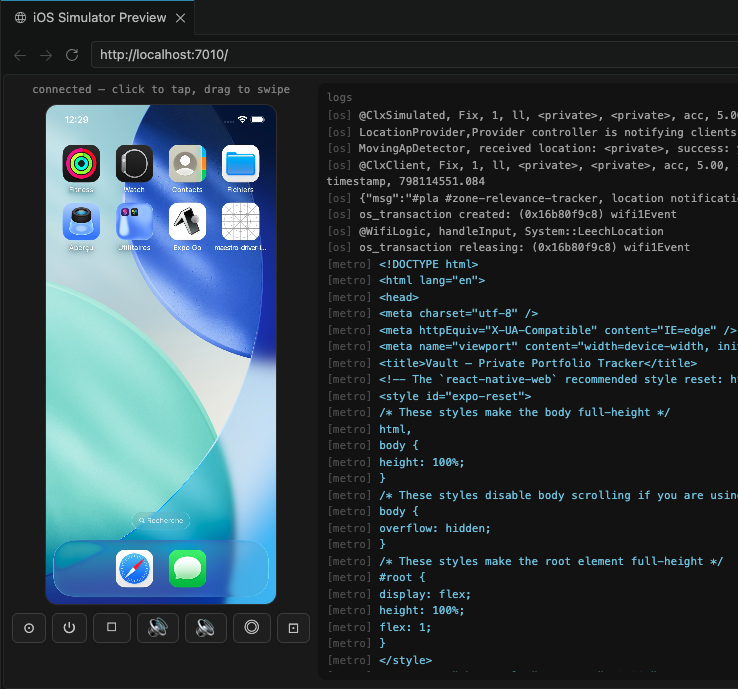
Claude Code just got a major upgrade for iOS developers. According to the official documentation at code.claude.com/docs/en/desktop-ios-simulator, you can now build, install, and test iOS applications directly in Apple's Simulator — all from the terminal.
This isn't a beta or a preview. It's a fully supported feature that integrates with existing Xcode projects. The documentation confirms Claude Code can handle the full build-test cycle without you ever opening Xcode.
What It Means For You — No More Context Switching
If you've ever built an iOS app, you know the pain: make a change in code, switch to Xcode, hit Build, wait, check the simulator, find the bug, switch back to the editor, repeat. Every context switch costs you 10-15 minutes of lost focus per day.
Claude Code's iOS Simulator support eliminates that. You stay in your terminal. Claude Code handles:
- Building Xcode projects: Run build commands directly from
claude code - Installing apps on the simulator: Deploy builds to any available simulator
- Executing UI tests: Run your XCTest suite without leaving the command line
This is especially powerful when combined with Claude Code's existing capabilities. You can ask Claude to fix a UI bug, have it modify the SwiftUI code, then immediately build and test the result — all in one session.
Try It Now — Getting Started
Ensure you have Xcode installed — Claude Code uses the
xcodebuildcommand under the hood, so you need the full Xcode toolchain, not just the Command Line Tools.Open your Xcode project directory in your terminal:
cd /path/to/YourApp.xcodeproj
claude code
Use prompts like:
- "Build and run the app on the iPhone 16 Pro simulator"
- "Run the login flow UI tests on the latest iOS simulator"
- "Fix the constraint warning in the profile view, then build and verify"
Claude Code will parse your Xcode project, identify available schemes and destinations, and execute the appropriate xcodebuild commands.
Pro Tips for iOS Development with Claude Code
1. Use CLAUDE.md for Project Context
Add iOS-specific instructions to your CLAUDE.md file so Claude knows your project structure:
# iOS Project Rules
- Use Swift 5.9+ syntax
- Target iOS 17+
- Run UI tests on iPhone 16 Pro simulator before considering a task complete
- Use SwiftUI for new views unless UIKit is required for compatibility
2. Combine with the Plan-First Workflow
Claude Code v2.1.181 introduced plan-first workflows that catch 71% of bad cross-file refactors before edits. For iOS work, this is gold. Ask Claude to "plan the refactor of the networking layer" before it touches a single file.
3. Handle Simulator Management
If you need a specific simulator, create one first:
xcrun simctl create "My Custom iPhone" com.apple.CoreSimulator.SimDeviceType.iPhone-16-Pro
Then tell Claude Code: "Build and run on 'My Custom iPhone' simulator."
When This Shines
- Rapid prototyping: Iterate on UI changes in SwiftUI without the Xcode edit-build-run cycle
- CI/CD debugging: Reproduce build failures locally without opening Xcode
- Cross-platform teams: If your team uses Claude Code for backend work, iOS devs can now join the same workflow
Limitations to Know
- Requires full Xcode installation (not just
xcode-select --install) - Works with simulator targets only — not physical devices (yet)
- Complex build configurations (CocoaPods, custom build scripts) may need manual setup
The Bottom Line
Claude Code's iOS Simulator support turns your terminal into an iOS development environment. For developers already using Claude Code for other parts of their stack, this means one fewer tool to context-switch between. For iOS-only devs, it's a compelling reason to give Claude Code a try.
Run claude code in your Xcode project directory and see how much faster your iteration loop gets.
Source: news.google.com