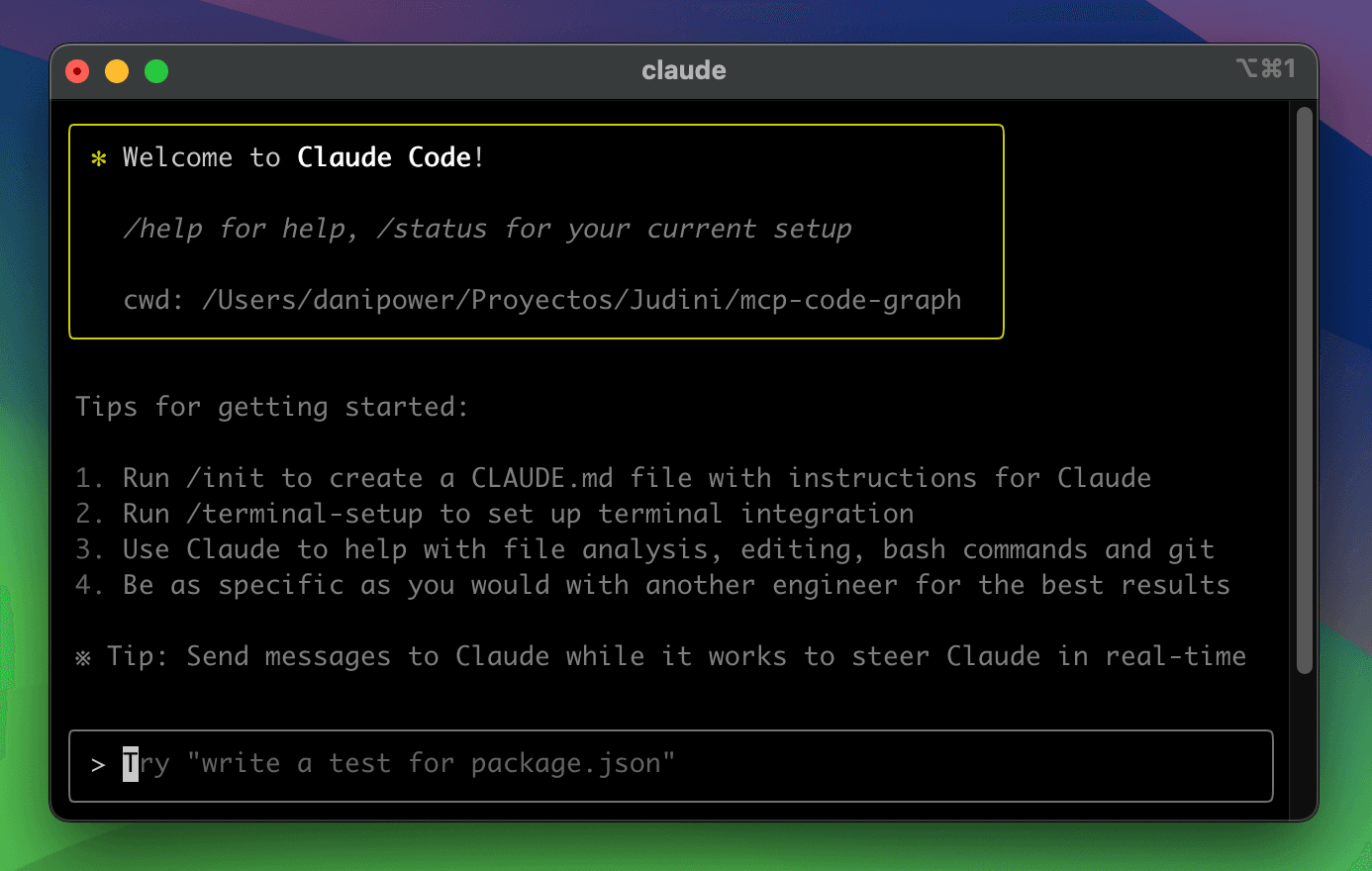
Developers are increasingly asking how to control Claude Code from mobile devices without keeping their primary computer running 24/7. The web interface lacks MCP support and feels limited compared to the full CLI experience. Here are three actionable solutions that maintain Claude Code's power while enabling mobile access.
Method 1: Cloud VM with Persistent Setup
The most robust approach is running Claude Code on a cloud virtual machine. This gives you full control, persistent sessions, and complete MCP functionality.
Setup Steps:
- Launch a cloud VM (AWS EC2, Google Cloud Compute, DigitalOcean Droplet) with Ubuntu 22.04+
- Install Claude Code:
curl -fsSL https://claude-code.anthropic.com/install.sh | bash - Configure your MCP servers in
~/.config/claude-code/mcp-servers.json - Set up SSH access:
ssh -L 8080:localhost:8080 user@your-vm-ip - Access via terminal app on your phone (Termius, Blink Shell)
Why This Works: Your VM runs continuously, maintaining project state and MCP connections. You can start a coding session on your laptop, then continue it from your phone later. The VM becomes your dedicated Claude Code server.
Method 2: Tailscale + Local Machine Wake-on-LAN
If you prefer using your own hardware but don't want it running constantly:
- Enable Wake-on-LAN in your computer's BIOS
- Install Tailscale on both your computer and phone
- Create a simple script to wake your machine:
# wake-pc.sh
etherwake -i tailscale0 [YOUR_MAC_ADDRESS]
sleep 30
ssh user@100.x.x.x "cd /path/to/project && claude code"
- Run this script from your phone's terminal when needed
Advantage: Your computer only runs when you're actively using Claude Code, saving power while maintaining your exact local environment with all MCP servers.
Method 3: Claude Agent + Telegram/Discord Integration
For lighter tasks, use Claude Agent with messaging platform integrations. While not identical to Claude Code, it provides mobile-friendly access to Claude's coding capabilities.
Telegram Setup:
- Install Claude Agent:
pip install claude-agent - Configure with your Anthropic API key
- Set up the Telegram bot integration
- Send code snippets and commands via Telegram
Limitation: This doesn't support the full MCP ecosystem or file system access that Claude Code provides, but it's excellent for quick code reviews, debugging help, and planning sessions.
Key Configuration for Mobile Work
When setting up remote access, optimize these Claude Code settings:
// ~/.config/claude-code/config.json
{
  "session_timeout": 3600,
  "auto_save_interval": 300,
  "default_project_path": "/home/user/projects",
  "enable_remote_sessions": true
}
Increase session_timeout to prevent disconnections during mobile use. Set auto_save_interval to ensure work isn't lost if your connection drops.
Security Considerations
- Use SSH keys instead of passwords
- Restrict VM firewall to your IP only
- Consider using Cloudflare Tunnel for HTTPS access
- Regularly update both Claude Code and your MCP servers
When Each Method Makes Sense
- Cloud VM: Best for daily mobile use, team collaboration, or resource-intensive projects
- Wake-on-LAN: Ideal for personal projects where you want your exact local environment
- Claude Agent: Suitable for quick consultations and code review without full development context
The cloud VM approach has gained popularity as Claude Code's MCP ecosystem expands. Developers are treating it like a personal coding assistant server that's always available.