For developers, meetings are a necessary distraction. The Read AI MCP (Model Context Protocol) server, now connectable to Claude Code, turns that distraction into a structured asset. This isn't just another note-taking tool; it's a direct pipeline from your meeting dialogue to actionable development tasks and summaries, accessible within your coding environment.
What It Does

The Read AI MCP server grants Claude Code direct access to your meeting data from platforms like Zoom, Google Meet, and Microsoft Teams. Once connected, Claude can analyze transcripts, audio, and video to provide:
- Concise Summaries: Get the TL;DR of hour-long syncs in seconds.
- Extracted Action Items: Claude identifies specific tasks, owners, and deadlines mentioned in the conversation.
- Technical Query Resolution: Ask Claude questions about decisions made in the meeting, like "What was the agreed API schema for the new endpoint?"
- Sentiment & Engagement Analysis: Understand the team's reaction to proposals or timelines.
This moves meeting follow-up from a manual, context-switching chore to an integrated part of your development workflow.
Setup: Connect in Under 5 Minutes
You need two things: a Read AI account (with meetings processed) and Claude Code with MCP enabled.
- Get Your Read AI API Key: Log into your Read AI account, navigate to settings or the developer section, and generate a new API key.
- Configure Claude Code's
claude_desktop_config.json: This file is typically located in~/.config/Claude/on macOS/Linux or%APPDATA%\Claude\on Windows. - Add the Read AI Server Configuration: Add the following block to the
mcpServersobject in your config file:
{
  "mcpServers": {
    "read-ai": {
      "command": "npx",
      "args": ["-y", "@modelcontextprotocol/server-readai"],
      "env": {
        "READ_AI_API_KEY": "your_api_key_here"
      }
    }
  }
}
- Restart Claude Code: Close and reopen the application. The new tools from Read AI will be available.
When To Use It: Specific Claude Code Prompts
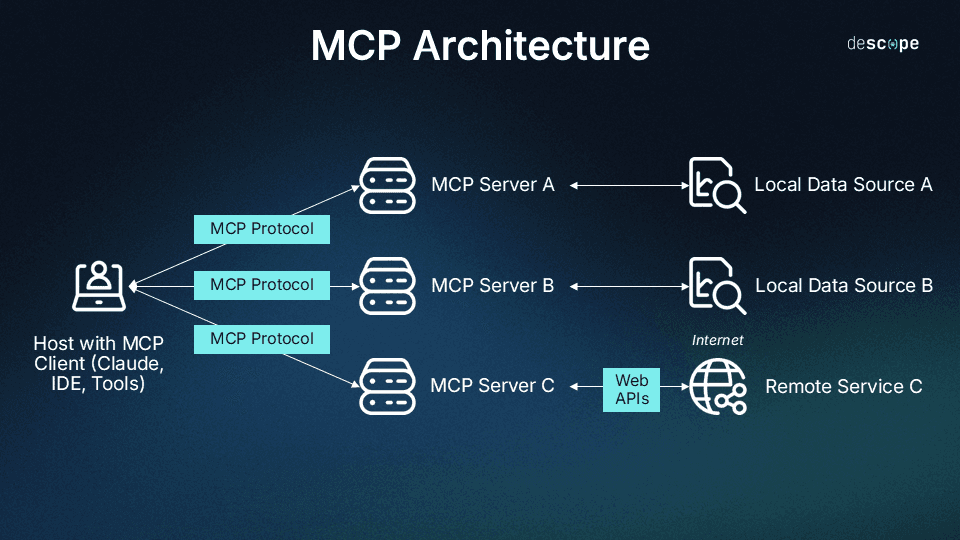
After setup, the power is in your prompts. Here’s how to use it effectively:
Post-Meeting Synthesis: After a sprint planning or technical design review, prompt Claude:
"Using the Read AI tools, analyze the most recent meeting titled 'Q3 Architecture Review.' List all decisions related to our database migration, and format the agreed-upon next steps as a checklist for my CLAUDE.md file."
Clarify Ambiguity Mid-Task: While coding, if you're unsure about a requirement discussed:
"Search my meetings from last week for discussions about the 'user authentication flow.' What were the specific security constraints the team agreed on?"
Weekly Prep: Before a 1:1 or status meeting:
"From my last three syncs with my manager, what were the action items assigned to me? Show me any that are still pending."
The integration shines for turning verbose, unstructured conversation into precise, queryable data. Instead of scrubbing through a recording, you ask Claude a direct question and get a direct answer, cited to the transcript.
Why This Beats Manual Notes
This workflow eliminates the friction between discussion and execution. For developers, the cost of context switching is high. Manually reviewing a meeting to find a technical detail breaks your flow. With this MCP server, that detail is a prompt away, inside the same environment where you're writing the code to implement it. It turns meeting history into another searchable, intelligent resource—like your codebase or documentation—that Claude Code can seamlessly reference.