What It Does — A High-Level Browser Subagent
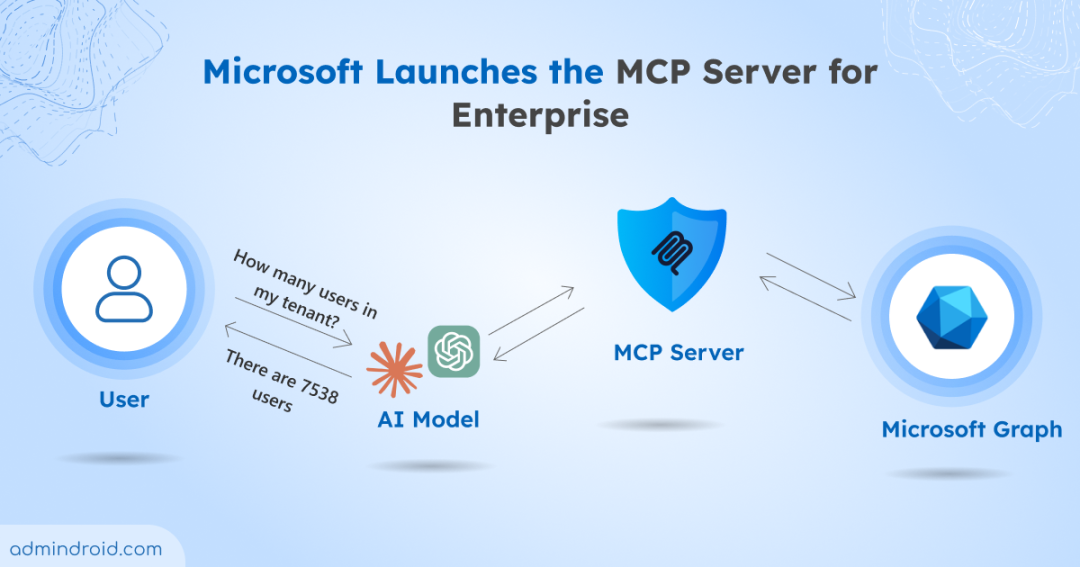
Alumnium is an open-source Model Context Protocol (MCP) server designed specifically for Claude Code. It doesn't expose raw browser primitives like click or type. Instead, it provides a small set of high-level tools—do(), get(), check()—that let Claude Code describe a browsing goal in plain language. Alumnium then handles the entire execution internally, from navigating and parsing the accessibility tree to interacting with elements, and returns only a concise, plain-text summary of what changed.
This architecture is the key to its performance. In the recent WebVoyager benchmark—a standard test for AI web browsing agents—Alumnium MCP used with Claude Code achieved a 98.5% success rate. This beats the previous record of 97.1% held by Surfer 2. The benchmark was run with Claude Code (using Sonnet 4.6) configured to use only Alumnium MCP, with no file system or other tool access.
Why It Works For Claude Code — Context Window Economics
The benchmark validates a critical design choice for Claude Code workflows. There are two common approaches to giving an AI agent browser capabilities:
- The Black Box Agent: A fully autonomous, dedicated browser agent (like Magnitude). You give it a task and get a result, but the browsing is isolated from your main agent's context.
- The Raw Toolbox: Exposing low-level browser primitives via MCP (like a Playwright server). This gives the main agent full control but floods its context window with raw HTML, accessibility trees, and screenshots for every step, causing context rot and derailing complex tasks.
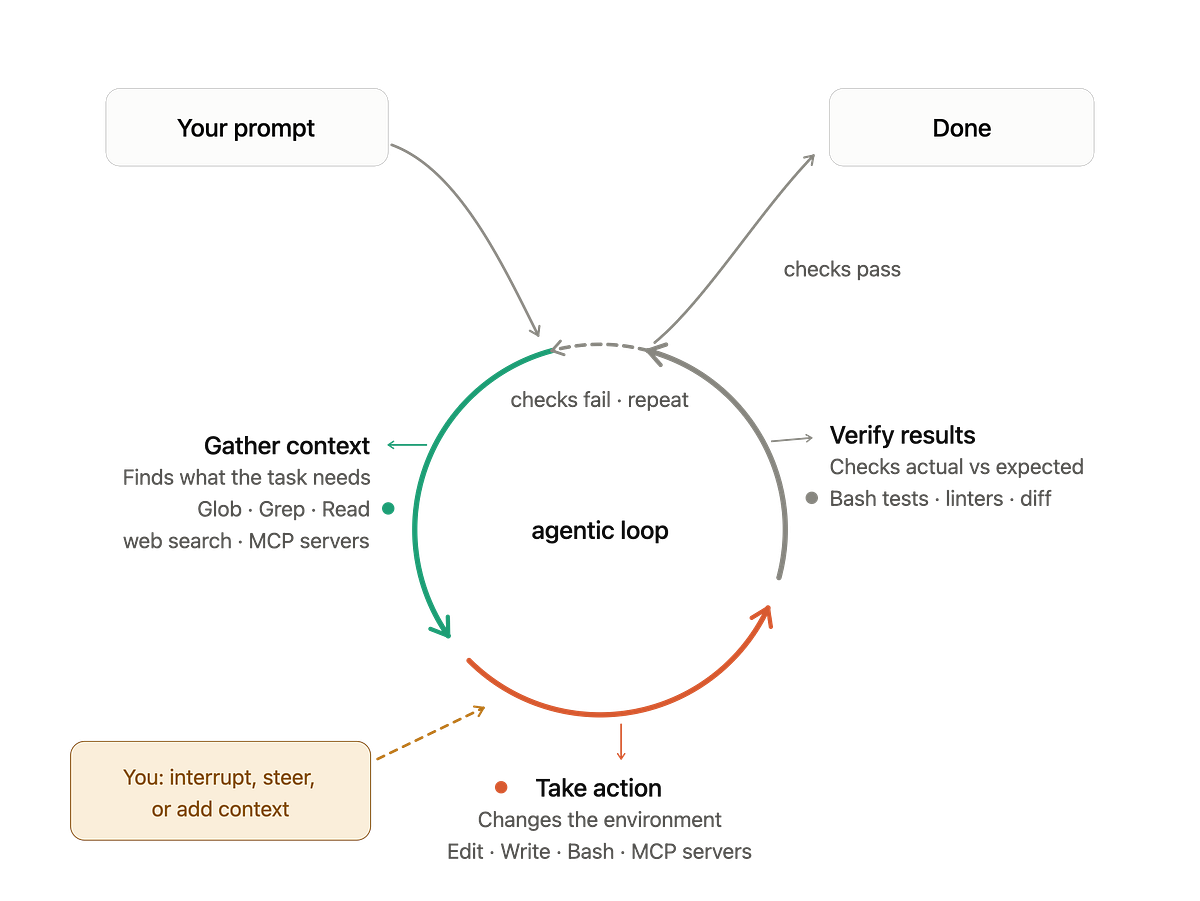
Alumnium sits in the middle. By acting as a subagent, it compresses the messy work of browsing into a single tool call. Claude Code stays focused on the higher-level task, its context isn't polluted with DOM details, and token usage is kept efficient. This follows a broader trend in the Claude Code ecosystem towards using specialized MCP servers to handle complex, context-heavy subtasks, a pattern we've seen with tools for database querying and workflow automation.
How To Install And Use It — Setup & Example
First, ensure you have Claude Code installed and an MCP server configuration file (e.g., claude_desktop_config.json).

- Install Alumnium: The project is open-source. You'll need to clone it and likely run its server component. Check the Alumnium repository for the latest setup instructions, which will involve Python and likely Docker.
- Configure Claude Code: Add the Alumnium MCP server to your configuration file. A typical entry might look like this:
Note: The exact{ "mcpServers": { "alumnium": { "command": "python", "args": [ "/path/to/alumnium/server.py" ], "env": { "ALUMNIUM_API_KEY": "your_key_here" } } } }commandandargswill depend on the project's setup. - Run Claude Code with It: Start Claude Code, and it will connect to the Alumnium server. You can then give it natural language tasks that involve the web.
Example Prompt:
"Claude, using the Alumnium tools, please visit the Python Package Index (pypi.org), search for the latest version of the
requestslibrary, and tell me its current version number and the release date."
Claude Code will formulate a high-level goal for Alumnium (e.g., do("navigate to pypi.org, search for 'requests', find the latest version card and extract version number and release date")). You'll see the concise results in the chat, not the browser's internal state.
When To Use It — Specific Use Cases
Integrate Alumnium MCP when your Claude Code task requires interacting with live websites, especially for:
- Research & Data Gathering: Pulling current documentation, checking API status pages, or comparing library versions.
- Automated Testing & Monitoring: Having Claude Code verify a web service is up or that a UI element renders correctly as part of a larger script.
- Complex Multi-Step Workflows: Where a task involves both coding and web interaction, like "scrape the latest error log format from the vendor's docs, then write a parser for it."
Avoid using it for simple, single HTTP GET requests where a curl command via a standard shell tool would be more efficient. Its power is in handling the complexity of a real browser.
gentic.news Analysis
This development is a direct enhancement of Claude Code's core agentic capabilities via the Model Context Protocol (MCP), a technology Claude Code uses extensively, as shown in 24 prior sources. The timing is significant, arriving just days after Anthropic released Claude Code's Auto Mode feature, which enables more autonomous task execution. Alumnium provides a perfect, high-fidelity tool for Auto Mode to leverage when web tasks are required, reducing the risk of context window overload that can break complex automation.
The success of this subagent model aligns with a clear trend in the Claude Code ecosystem: offloading specialized, context-heavy operations to dedicated MCP servers to preserve the main agent's reasoning focus and token budget. This mirrors the utility of other MCP servers for databases or internal APIs. It also subtly competes with the approach of all-in-one autonomous agents like OpenClaw, favoring integration and control within the developer's existing Claude Code workflow. As Claude Code's capabilities expand—evidenced by its appearance in 157 articles this week—the value of a robust, high-performance tool ecosystem like this only grows.