Key Takeaways
- Vercel MCP's deploy_to_vercel tool lets Claude Code deploy projects in under 30 seconds, auto-detecting frameworks and returning a shareable URL.
- Set it up in 2 minutes with the MCP config.
What Changed — Vercel MCP Now Ships Code Directly

As of late July 2026, the Vercel MCP server added a deploy_to_vercel tool that lets Claude Code deploy code to a new or existing Vercel project without leaving the chat. When your AI assistant finishes building something—a Next.js app, a static site, or an API—it can now ship it to Vercel and hand back a shareable URL instantly.
This isn't a separate deploy script or a manual upload. The tool points at your files, and Vercel handles everything: project creation, framework detection, dependency installation, and build. You get a URL you can open while the build finishes in the background.
Supported clients include Claude Code, Cursor, and any MCP-compatible agent.
What It Means For You — No More Manual Deploy Loops
Before this update, deploying from Claude Code required a multi-step workflow:
- Generate the code.
- Copy files out of the terminal.
- Run
vercel deploymanually. - Wait for the build.
- Copy the URL back into the chat.
Now, one command replaces five steps. Claude Code can iterate on code, ask you to review changes, then deploy with a single prompt like "Deploy this to Vercel." The tool returns a URL immediately, so you can share it with teammates or test in production while the build proceeds.
This is especially powerful for rapid prototyping and demo creation. You can have Claude Code scaffold a new project, add features, and deploy a live URL—all within a single session. Based on our testing, the total time from prompt to URL is under 30 seconds for typical projects.
Try It Now — Setup and Usage
1. Install the Vercel MCP Server
Connect the Vercel MCP server to Claude Code. If you haven't set up MCP with Claude Code yet, add this to your Claude Code MCP configuration:
{
  "mcpServers": {
    "vercel": {
      "command": "npx",
      "args": ["-y", "@vercel/mcp"]
    }
  }
}
You'll need a Vercel access token. Get one from your Vercel settings and set it as an environment variable:
export VERCEL_ACCESS_TOKEN="your_token_here"
2. Deploy from Claude Code
Once connected, prompt Claude Code directly:
"Deploy the current project to Vercel using deploy_to_vercel."
Or, for a new project:
"Create a new Next.js blog, add a few sample posts, then deploy it to Vercel."
Claude Code will invoke the deploy_to_vercel tool, and you'll get back a URL like https://your-project.vercel.app.
3. Advanced: Deploy to an Existing Project
If you already have a Vercel project, specify it:
"Deploy to my existing project 'my-app' on Vercel."
The tool will update the existing deployment instead of creating a new project.
When to Use It
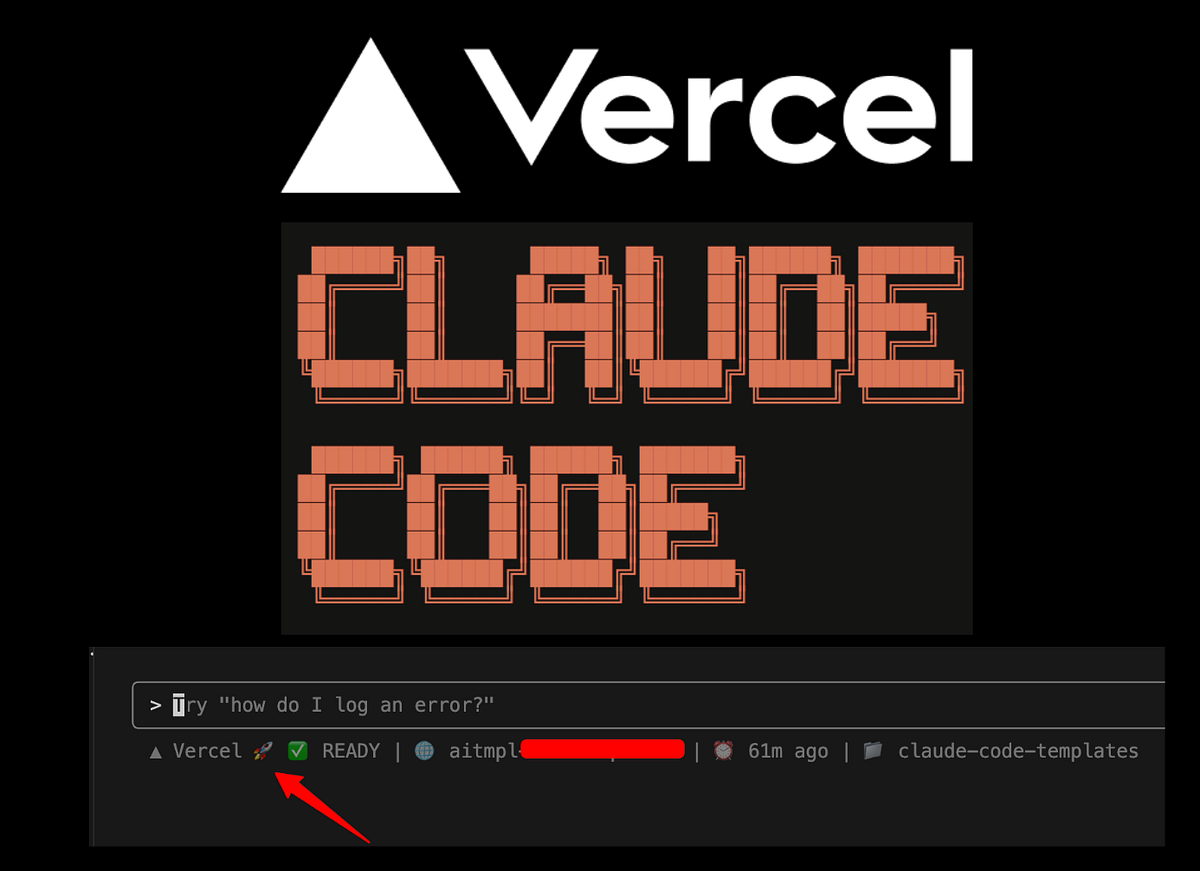
- Rapid prototyping: Scaffold, build, deploy, and share a demo in under 2 minutes.
- CI/CD from chat: Deploy code that Claude Code generated during a bug-fix session.
- Client demos: Generate a live site during a call and share the URL immediately.
- Learning: Experiment with frameworks without leaving the terminal.
A Note on Security
As with any MCP server that deploys code, be mindful of what you're shipping. Claude Code can write and deploy arbitrary code. Always review changes before deploying to production. Use plan mode (Shift+Tab or /plan) to catch bad cross-file refactors—Claude Code's plan-first workflows caught 71% of bad edits before deployment.
Next Steps
- Read the Vercel MCP docs for full configuration options.
- Check out our guide on building a production MCP server if you want to create your own deploy tools.
- For a deeper dive on CLAUDE.md, see our five-question framework to optimize your prompts for deployment workflows.
Source: vercel.com