What It Does
@ghackk/multi-claude is an npm package that extends the official Claude CLI, allowing developers to manage multiple authenticated accounts. The core problem it solves is the friction of switching between different Claude Code contexts—like your personal account, your team's shared account, or a client-specific instance. Instead of manually logging in and out or juggling environment variables, you can switch profiles with a single command.
Key features include:
- Profile Management: Create, list, and switch between named profiles (e.g.,
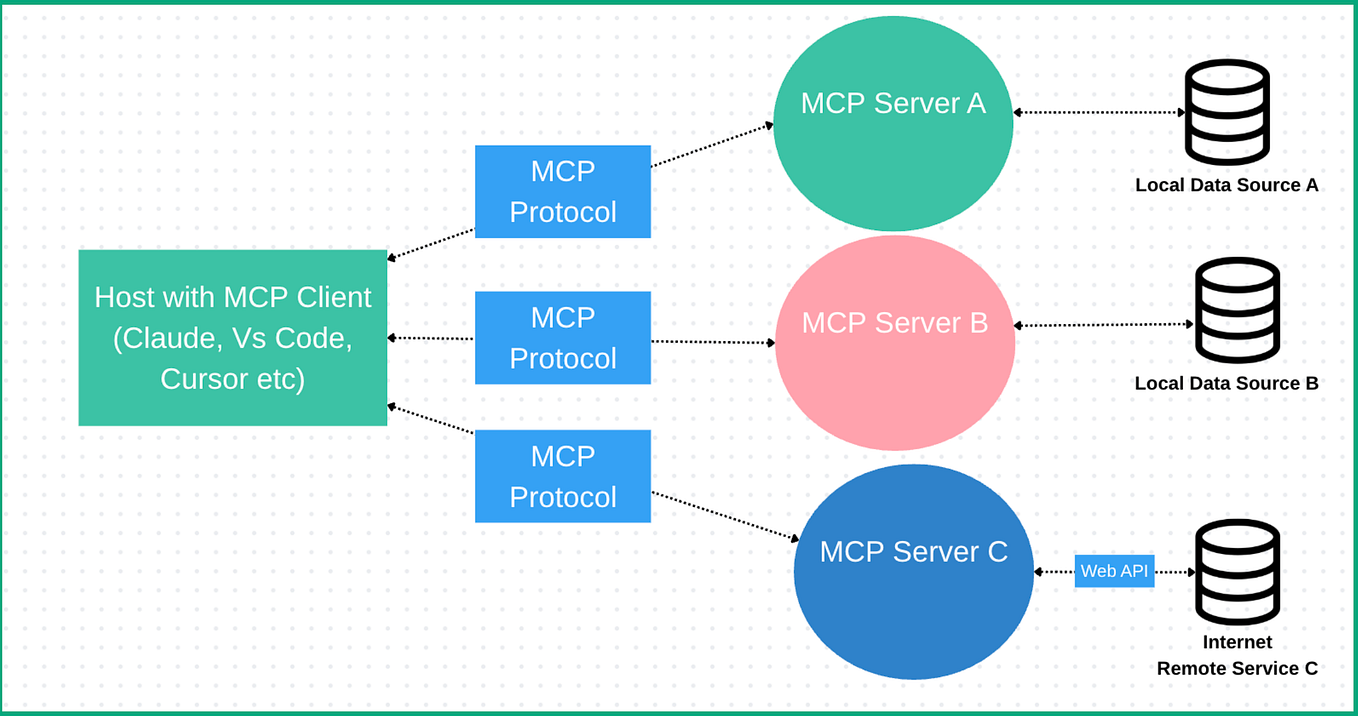
work,personal,client-alpha). - Shared Configuration: Profiles can share common MCP server configurations or model preferences, reducing setup duplication.
- Cloud Sync (Optional): Securely sync your profile configurations (excluding API keys) across machines using your own cloud storage backend.
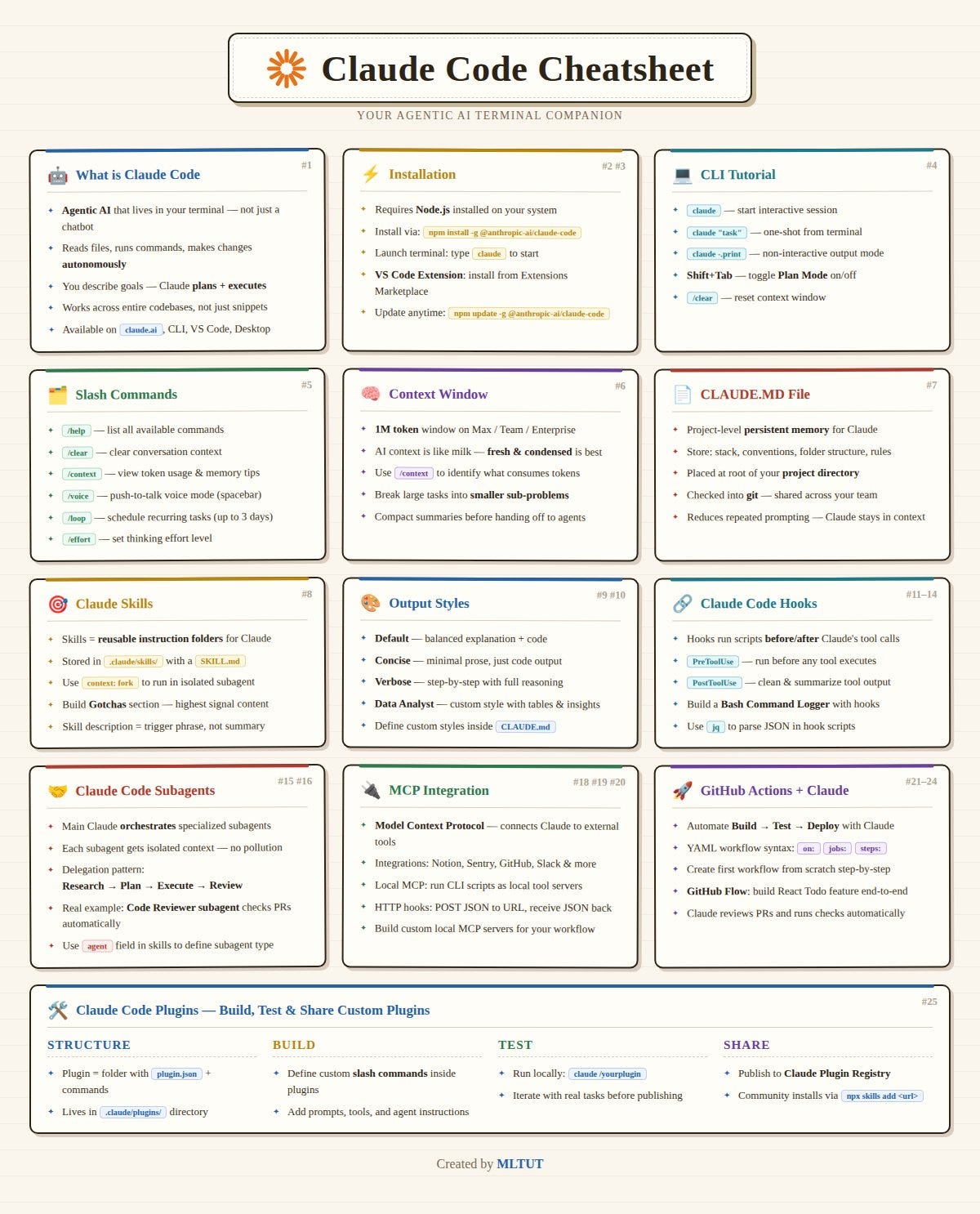
- CLI Integration: It wraps the standard
claudecommands, so your existing workflows withclaude codeorclaude chatremain unchanged once a profile is active.
Setup
Installation is straightforward via npm:
npm install -g @ghackk/multi-claude
After installation, the claude command is enhanced. Initialize your first profile by authenticating with Anthropic:
claude profile create work
# Follow the prompts to log in via browser for the 'work' account
Add a second profile, like for personal use:
claude profile create personal
# Authenticate with your personal Claude account
List all profiles:
claude profile list
Switch your active session:
claude profile use personal
# All subsequent `claude code` commands will use your personal account
When To Use It
This tool is most valuable in specific, real-world Claude Code scenarios:
Separating Work and Personal Contexts: Use your team's Claude Code subscription with shared project context during the day, then seamlessly switch to your personal account for open-source contributions or learning projects in the evening. This prevents accidental use of the wrong API quota or mixing project histories.
Freelancers or Agency Work: Manage separate profiles for different clients. Each profile can have its own set of frequently used MCP servers (like a client-specific database connector) and a dedicated chat history, keeping client work completely isolated and organized.
Collaborative Team Settings: Share a
claude.multi.config.jsonfile (without API keys) in your team's repository. This file can define a sharedworkprofile with pre-configured MCP servers for your internal tools (e.g., Jira, internal API docs). New team members just need to authenticate once and instantly have the correct, productive setup.Testing Different Models or Configurations: Create a
betaprofile to test commands with Claude 3.5 Sonnet's experimental features or a different set of system instructions in yourCLAUDE.md, while keeping a stablemainprofile for your daily driver.
The cloud sync feature, while optional, is a power-user bonus. By pointing it to a secure directory in Dropbox, iCloud, or a private Git repo, you can ensure your profile configurations (like your curated list of MCP servers) are consistent across your desktop and laptop without manually copying files.